
How to Integrate Your LivePrep Calendar with Google Calendar & Apple Calendar
Keep your LivePrep classes organized by syncing your class schedule directly to your personal calendar. Below you will find written instructions; if you prefer a visual, here is our YouTube how-to!
Google Calendar
From the LivePrep homepage, click on your Profile.
Select View Profile Information at the top
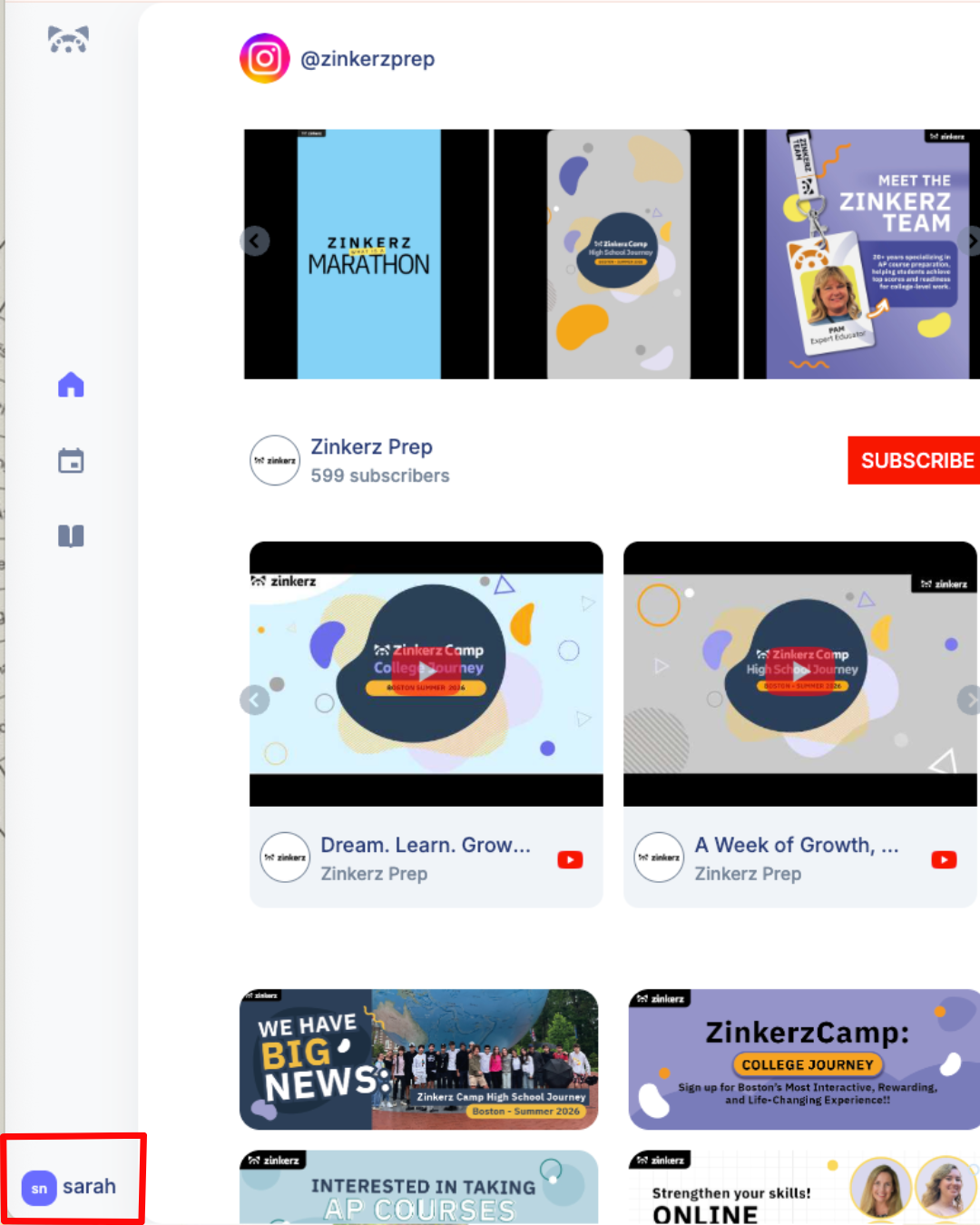
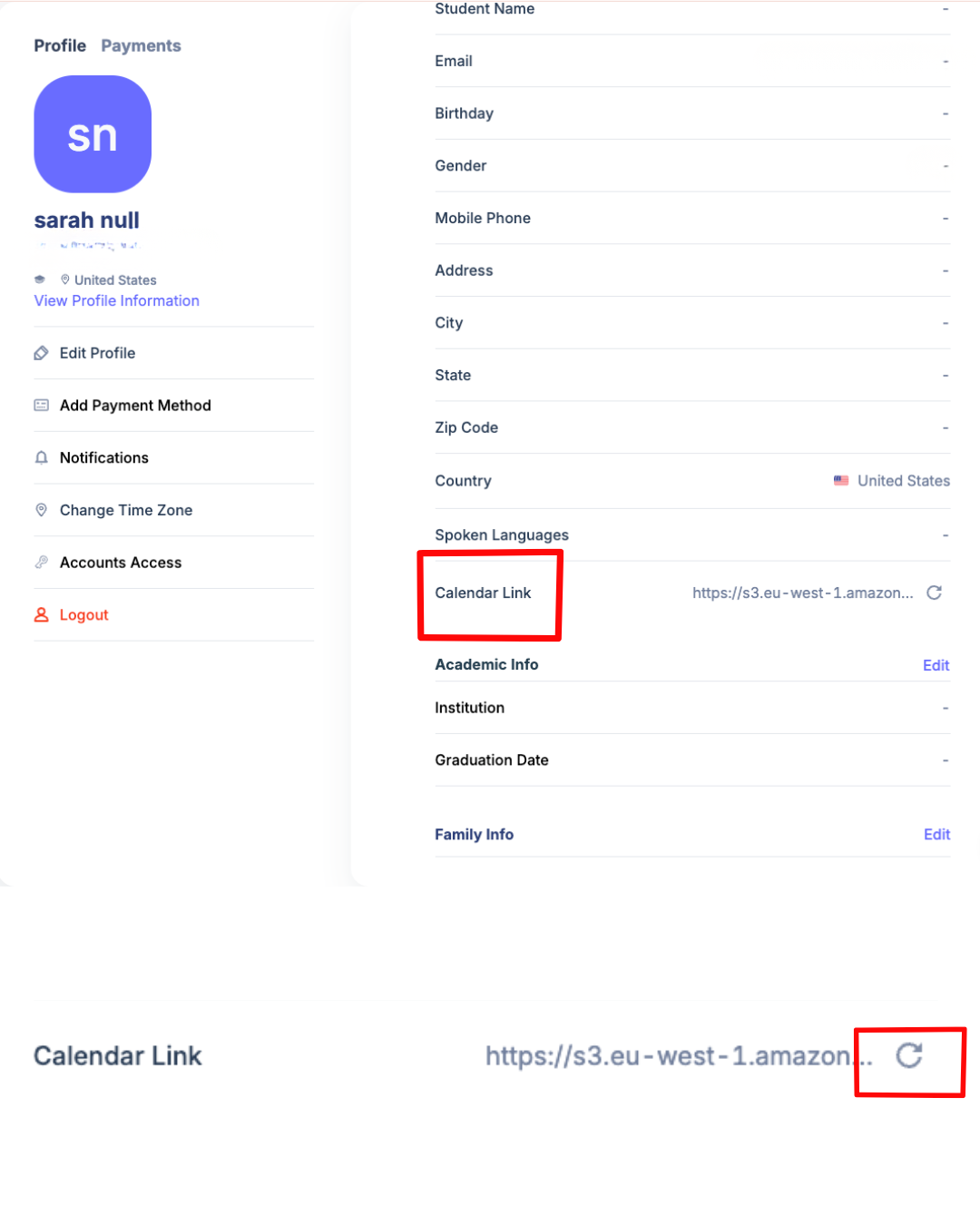
Scroll down until you see Calendar Link.
Click the link to copy it.
If the link does not work, refresh the link using the button on the right, then click the new link to copy it.
Open Google Calendar.
On the left-hand side, scroll down to Other Calendars.
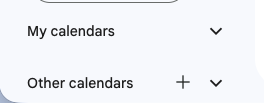
Click the + button.
Select From URL.
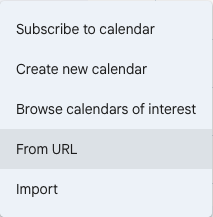
Paste your LivePrep calendar link into the URL field.
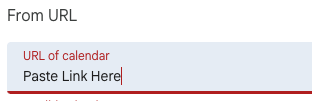
Click Add Calendar.
Your LivePrep classes should now appear on your Google Calendar!
Apple Calendar
From the LivePrep homepage, click on your Profile.
Select View Profile Information.
Scroll down until you see Calendar Link.
Click the link to copy it.
If the link does not work, refresh the link using the button on the right, then click the new link to copy it.
Open the Calendar app on your MacBook.
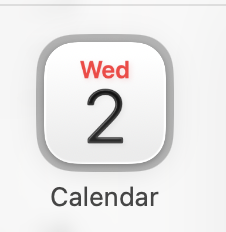
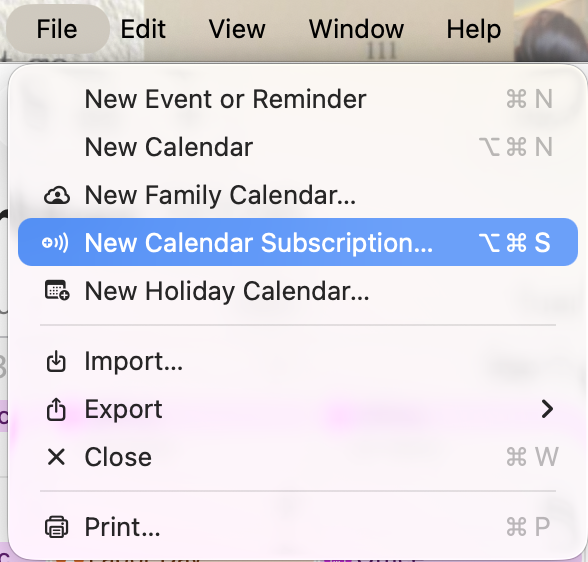
Click File in the top menu bar.
Select New Calendar Subscription.
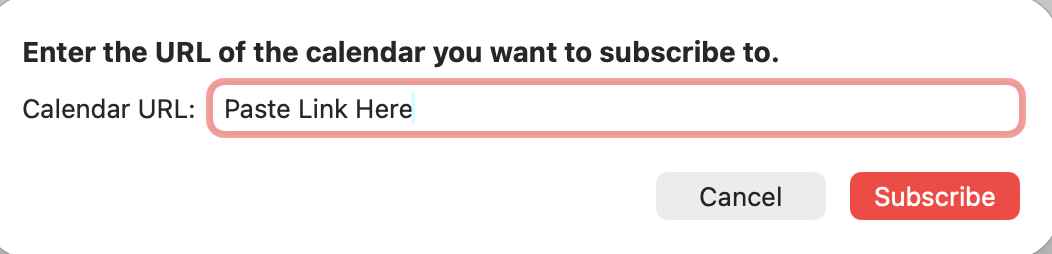
Paste your LivePrep calendar URL into the field.
Click Subscribe.
Enter a name for your calendar.
Change Auto-refresh to Every 5 Minutes so your calendar stays up to date with the latest class information.
Click Subscribe or Ok to finish.
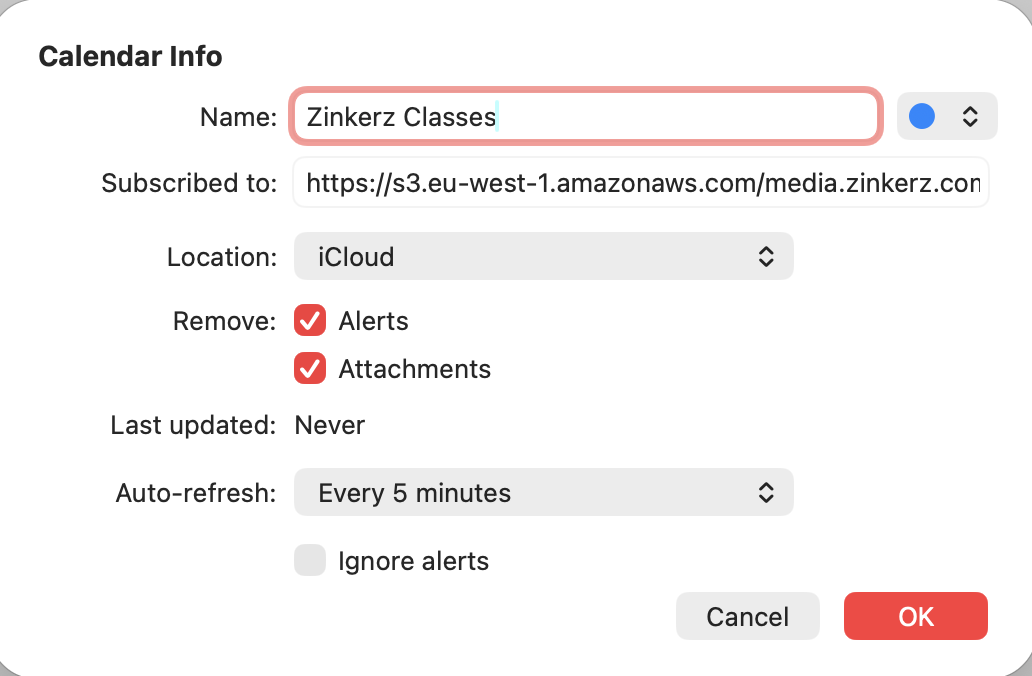
Your LivePrep classes will now automatically sync to your personal calendar!